2024년 6월 21일
VIA를 사용하여 키보드를 프로그래밍하는 방법
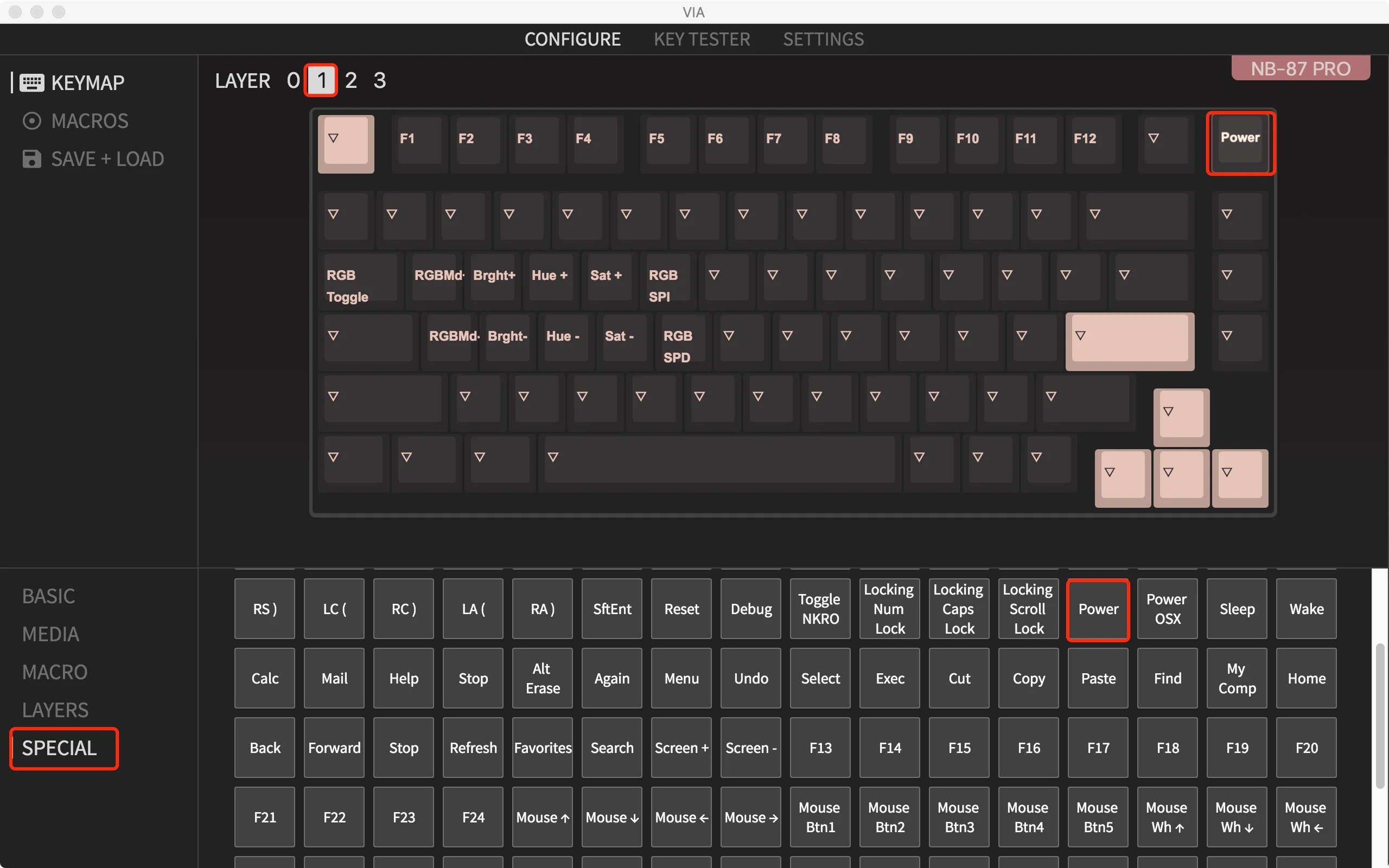
VIA에서 키를 다시 매핑하는 방법1, 키보드를 케이블에 연결하고 여기를 클릭하여 VIA를 엽니다. (참고: 온라인 VIA는 현재 Chromium 기반 브라우저를 통해서만 열 수 있습니다.)2, VIA가 키보드 인증에 실패하면 올바른 버전을 다운로드하십시오.
#unit-QfQXrWMoOBxA3zp [ce-data-type="text"]{color:rgba(255, 255, 255, 1);}#unit-QfQXrWMoOBxA3zp{background-color:rgba(0, 0, 0, 1);}
How to Remap a Key on VIA?
1, Connect your keyboard to our cable and click here to open the VIA. (Note: Online VIA can currently only be opened using Chromium-based browsers.)
2, If the VIA fails to authorize your keyboard, please download the correct keymap JSON file. Since it takes time for GitHub to approve our VIA code submissions, some keymap JSON files may not be automatically recognized at the moment. You can find the keymap JSON file by searching for "keymap working on VIA" on the keyboard product page. Alternatively, you can visit this link to locate the JSON file for your specific keyboard, which can be found in the latter portion of the firmware page.
视频
#unit-85qtRQnWvgETJiZ .ce-video\_inner{justify-content:center;}
#unit-wyCYipwgxkXJwkM [ce-data-type="text"]{color:rgba(248, 248, 248, 1);}#unit-wyCYipwgxkXJwkM{background-color:rgba(0, 0, 0, 1);}
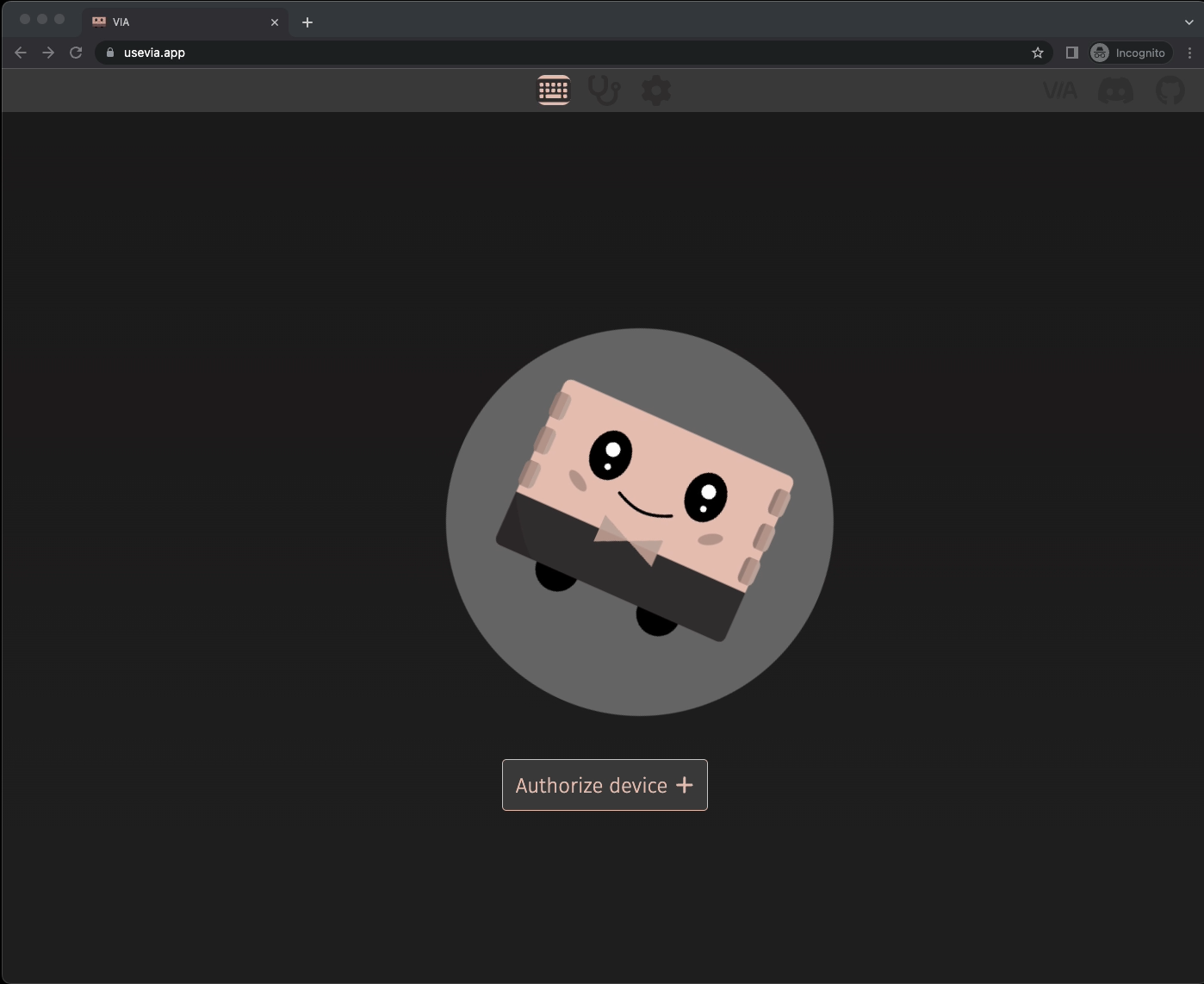
3, Once you have downloaded the keymap JSON file, go to the VIA and turn on the "Show Design tab" in the "Settings" tab. (If it's already on, you can skip this step.)
4, Drag the JSON file into the "Design" tab on the VIA.
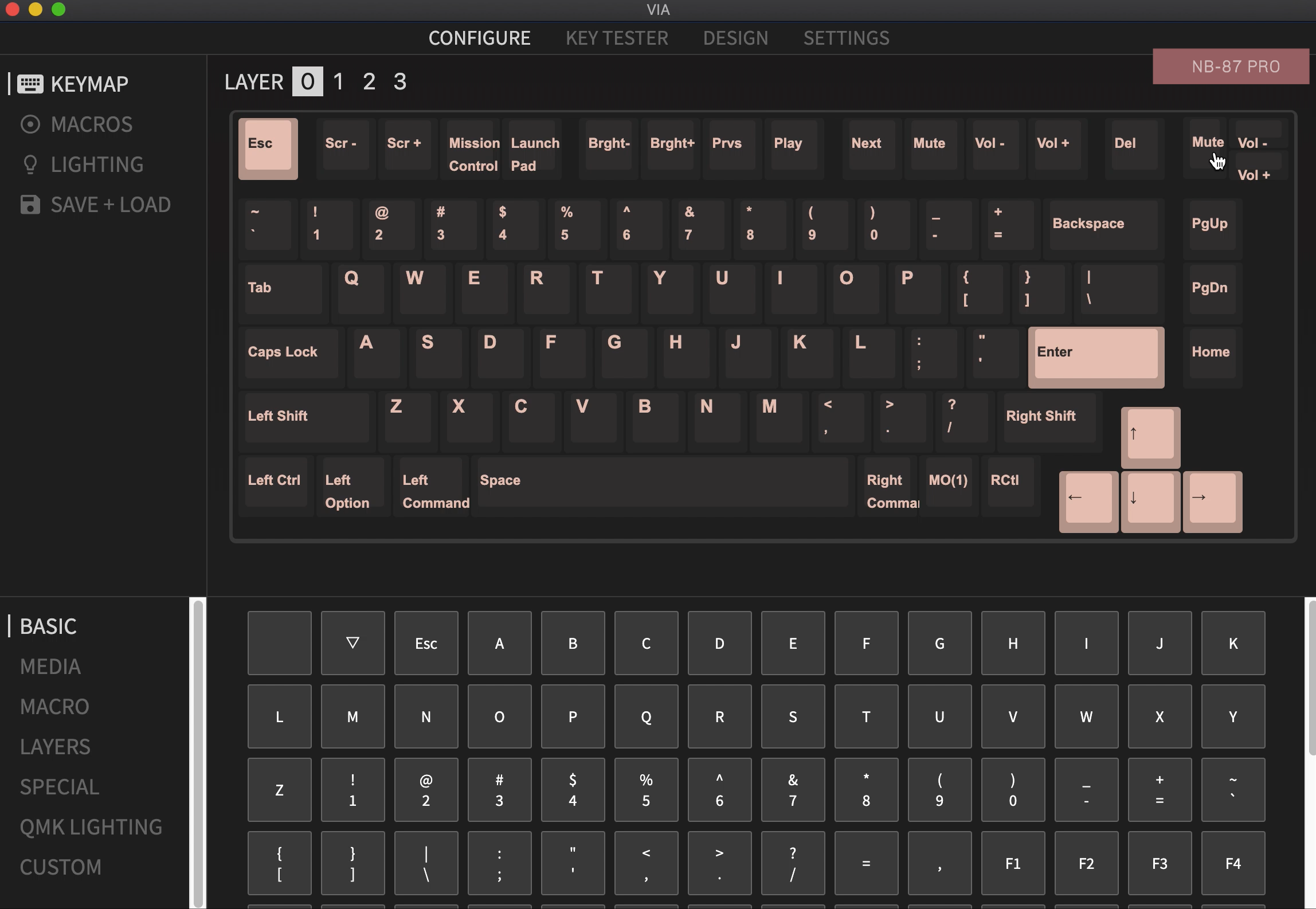
5, In the "Configure" tab, select the "KEYMAP" section. Click on the key you want to program, and it will start flashing slowly. Then, click on the key you want to remap in the "BASIC/MEDIA/MACRO/LAYERS/SPECIAL/QMK LIGHTING/CUSTOM" section. Your key remapping is now complete.
Here's a video example for your reference.
#unit-wg86f65sy4QkjgH .ce-video\_inner{justify-content:center;}
#unit-rp9aTaLk0rLsqcV [ce-data-type="text"]{color:rgba(248, 248, 248, 1);}#unit-rp9aTaLk0rLsqcV{background-color:rgba(0, 0, 0, 1);}
How to Use Different Layers to Set the Combination Keys
You can customize each key on each layer of your keyboard with VIA, there are two layers for Mac, and two layers for Windows. For example, the Q1 keyboard comes with 81 keys, so you can remap up to 324 keys (81 x 4) you want.
The default layer for the keyboard is layer 0.
The button M0(1) = layer 1
The button M0(3) = layer 3
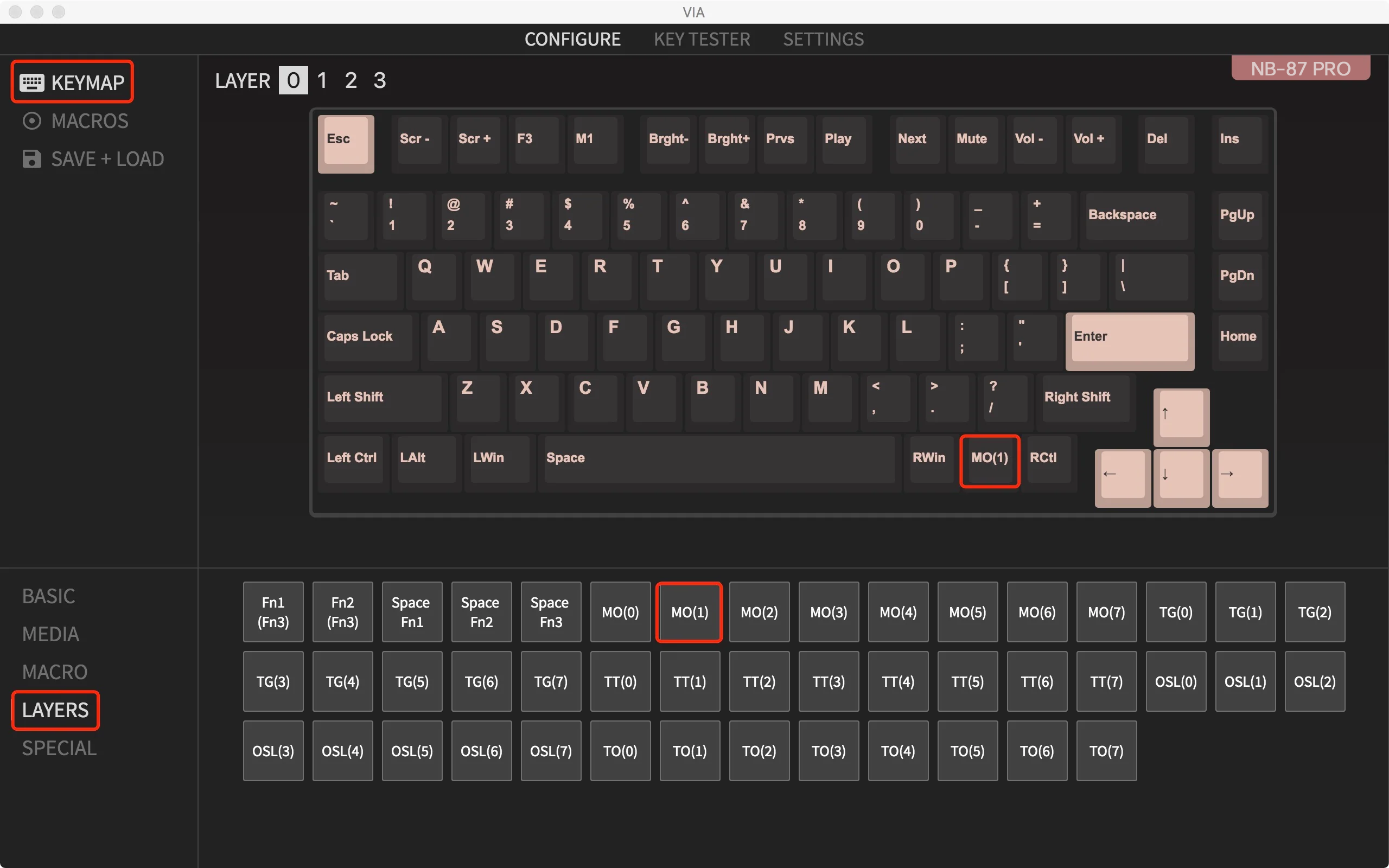
Example: Use the layer function in VIA to set power button = fn + INS on macOS.
- We have the "fn" key (aka MO(1) on VIA). Now we need to set the power button = "fn" + "upper right corner key".
#unit-Wed0M2HTLvohZ61 .ce-video\_inner{justify-content:center;}
#unit-YY3Q2jZbiOnQN6p [ce-data-type="text"]{color:rgba(0, 0, 0, 1);}#unit-YY3Q2jZbiOnQN6p{background-color:rgba(0, 0, 0, 1);}
How to Use Different Layers to Set the Combination Keys
You can customize each key on each layer of your keyboard with VIA, there are two layers for Mac, and two layers for Windows. For example, the Q1 keyboard comes with 81 keys, so you can remap up to 324 keys (81 x 4) you want.
The default layer for the keyboard is layer 0.
The button M0(1) = layer 1
The button M0(3) = layer 3
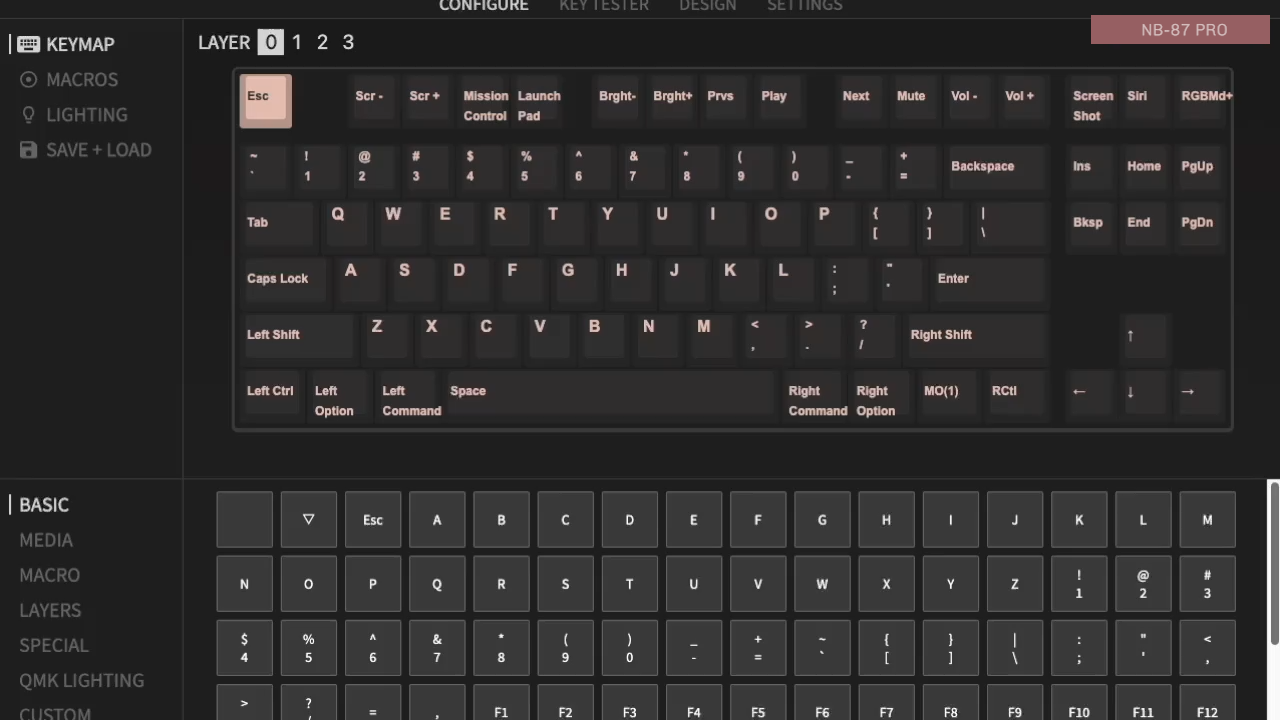
Example: Use the layer function in VIA to set power button = fn + INS on macOS.
- We have the "fn" key (aka MO(1) on VIA). Now we need to set the power button = "fn" + "upper right corner key".
#unit-uQIelzh82Zctu2H [ce-data-type="text"]{color:rgba(248, 248, 248, 1);}#unit-uQIelzh82Zctu2H{background-color:rgba(0, 0, 0, 1);}
- Click LAYER 1.
- Click the "ins" key on the upper right corner (the key will then flash slowly). Then, find the "power" key on the SPECIAL section, click it.
- Hold fn and the upper right key to power off your computer.
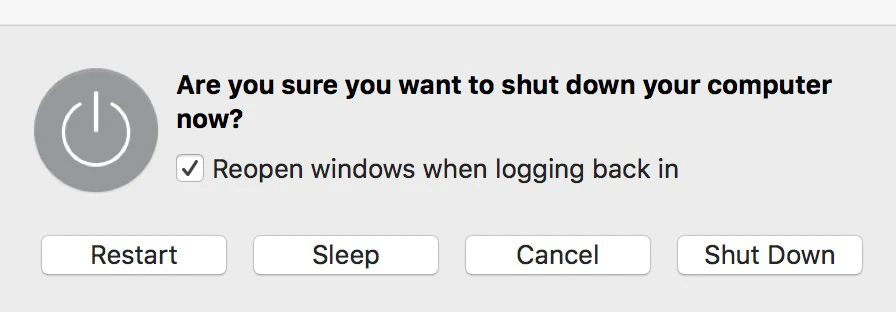
PS: The shutdown option will normally pop up and let you choose "Shut Down", "Sleep", or "Restart". However, please check if the system has the pop up option on just in case the system shuts down directly and the file is not saved.